Tier Playbooks
Strategy by lead quality. VIP, Hot, Warm, and Cold each get their own playbook so high-intent leads get treated differently from colder ones.
When a lead is scored into a tier, YouEx.ai can draft or send the right email based on playbooks, topics, and send controls you configure — without losing oversight when you need it.
From score to send
Score
Lead enters a tier
Match
Procedure by source
Draft
Always created first
Send
If mode allows
Why it matters
Scoring and routing only help if someone actually follows up. Most teams lose momentum between “qualified lead” and “first email” — drafts sit unfinished, VIP leads wait as long as cold ones, and nobody knows which source needs a different message.
Automated follow-up closes that gap with a four-layer system: tier playbooks → emailing procedures → email topics → send controls. Configure it once in the Revenue Agent / Tier Playbook area; every scored lead can run the path you defined.
The system
Each layer answers a different question — so automation stays intentional instead of becoming a black box.
Strategy by lead quality. VIP, Hot, Warm, and Cold each get their own playbook so high-intent leads get treated differently from colder ones.
What happens automatically when a lead enters a tier — by lead source. Draft for review, or draft and send.
Reusable messaging themes the AI uses to build subject and body — or swap in your own fixed copy.
Choose draft-only, send immediately, or auto-send after a delay measured in minutes, hours, or days.
How it works
Step 1
When scoring finishes, YouEx.ai checks whether tier-playbook emailing should run for that lead — including retry paths when something blocked the first attempt.
Step 2
The system looks up the emailing procedure for your workspace, the lead’s tier (VIP / Hot / Warm / Cold), and the lead source — or a catch-all “All Sources” rule.
Step 3
Active procedures are tied to an Email Topic. YouEx.ai generates or reuses a draft for that tier run so every automated path leaves a reviewable record in the CRM.
Step 4
If the procedure is set to Send, the system validates the lead email, do-not-contact status, and sender identity — then queues the send, optionally after your configured delay.
Draft vs auto-send
Every emailing procedure has an explicit mode. You’re never guessing whether the system will fire on its own.
Create a personalized draft for your rep to review, edit, and send when they’re ready. Full control stays with the human.
Create the draft and queue automatic delivery — immediately, or after a delay you set in minutes, hours, or days.
Email Topics
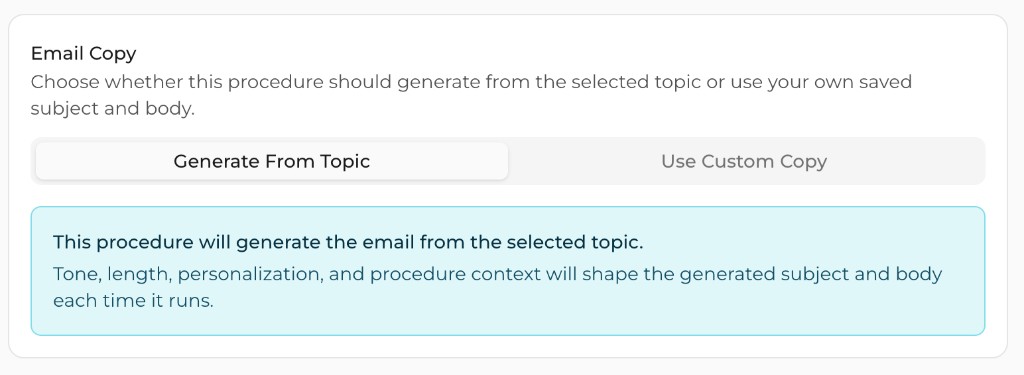
Topics are reusable content objects — title, keywords, and body guidance with markdown/HTML support. Procedures point at a topic, then choose how copy is produced.
AI writes a fresh subject and body each run, shaped by tone, length, personalization weights, and procedure context for that tier + source path.
Save a fixed subject and body to reuse every time — when you want the same message, not a regenerated one.
Sender identity
Auto-send prefers the assigned rep’s connected mailbox when available.
If the assigned sender isn’t available, YouEx.ai falls back to the Executive Agent sender context.
For scheduled and manual sends: Gmail (if connected and enabled), then Outlook, then Resend as a workspace-managed fallback.
Safety rails
Delivery is blocked when any of these are true — so compliance and mailbox health stay ahead of speed.
When auto-send can’t run
The email remains in the CRM with a clear reason — nothing is quietly discarded.
Failed runs are tracked so your team (and the system) can see what blocked delivery.
Follow-up is re-queued rather than dropped, so a temporary gap doesn’t kill the sequence.
Who controls what
Beyond tier procedures, scheduled send is also available from the draft UI and via MCP (`schedule_email_draft`) — so automation and assistants share the same outbound path. Learn about MCP →
At a glance
FAQ
Only when you configure an emailing procedure for that tier and lead source. You choose Draft or Send per procedure — automation never invents a path you didn’t set up.
Yes. Set the procedure to Draft Email and the AI creates a personalized draft for reps to review, edit, and send. Send mode is opt-in when you want hands-off delivery.
The draft stays unsent with a reason, the run is marked failed/retryable, and a retry is scheduled. Follow-up isn’t silently dropped because of a temporary block.
Absolutely. Reps can generate from a topic, save drafts, send immediately, or schedule a send — and see when automation already queued something for that lead.
Configure tier playbooks once — draft for review or auto-send with delay — and keep every follow-up on-brand, source-aware, and safety-checked.